
Understanding USB Cables and Adapters: A Complete Guide
Understanding USB cables and adapters is essential for anyone who wants to connect modern devices efficiently and safely. This guide covers the key connector types, data speeds, power delivery capabilities, and how to choose the right cable for your specific needs.
Table of Contents
- The Evolution of USB Technology
- Understanding USB Connector Types
- Data Transfer Speeds and USB Generations
- Power Delivery and Charging Capabilities
- Frequently Asked Questions
- Comparison of USB Cable Types
- Practical Tips for Choosing USB Cables
- Final Thoughts on Understanding USB Cables and Adapters
- Further Reading
Quick Stats: Understanding USB Cables and Adapters
- USB-C cables supporting USB Power Delivery Extended Power Range can deliver up to 240 watts of power (Adafruit Industries, 2024).
- USB4 Version 2.0 cables support peak data rates of up to 80 gigabits per second (Newnex, 2026).
- USB 2.0 cables can be extended with active solutions to lengths of up to 25 meters while maintaining 480 megabits per second data rates (StarTech.com via RS Components, 2025).
Understanding USB cables and adapters starts with a simple truth: the connector shape alone tells you very little about what a cable can actually do. A USB-C port on a laptop might look identical to one on a phone, but the cables and protocols behind them can differ dramatically. This confusion leads many people to buy cables that charge slowly, transfer data at a crawl, or even damage their devices. By learning the fundamentals of USB generations, connector types, and power delivery standards, you can avoid these pitfalls and choose the right cable every time.
The Evolution of USB Technology
The Universal Serial Bus standard has undergone several major revisions since its introduction in the mid-1990s. Each new generation brought faster data transfer speeds, improved power delivery, and new connector shapes. The original USB 1.0 standard supported a maximum data rate of 1.5 megabits per second, while USB 2.0, introduced in 2000, raised that to 480 megabits per second. USB 3.0, released in 2008, jumped to 5 gigabits per second and introduced the blue-colored ports and connectors that are still common today. Subsequent revisions, including USB 3.1 Gen 2 at 10 gigabits per second and USB 3.2 at 20 gigabits per second, continued to push performance higher. The most recent standard, USB4, supports up to 40 gigabits per second, and USB4 Version 2.0 can reach an impressive 80 gigabits per second (Newnex, 2026).
Each generation also improved power delivery capabilities. Early USB ports provided only 2.5 watts of power, enough for keyboards and mice. Modern USB-C ports using USB Power Delivery can supply up to 240 watts, enough to charge even high-performance laptops. This evolution has made USB the dominant connectivity standard for everything from smartphones to monitors and docking stations. However, the proliferation of standards and connector types has also created confusion, which is why understanding USB cables and adapters is more important now than ever.
Understanding USB Connector Types
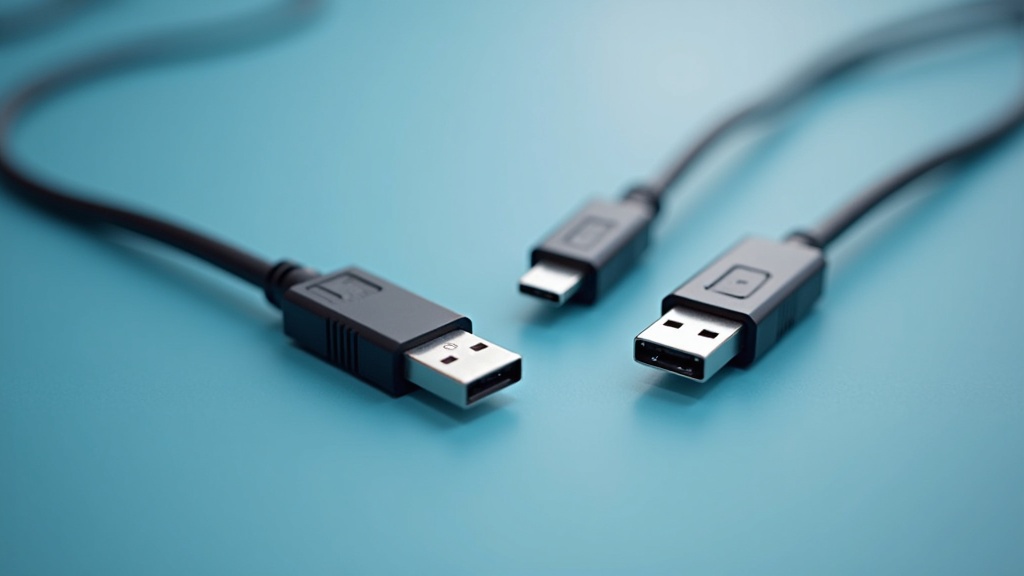
The physical shape of a USB connector determines which devices it can plug into. The most common types include USB-A, USB-B, Micro-USB, and USB-C. USB-A is the flat, rectangular connector found on most computers and chargers. USB-B is a square connector often used on printers and older external hard drives. Micro-USB was once the standard for smartphones and tablets before USB-C largely replaced it. USB-C is the newest and most versatile connector, featuring a small, oval shape that is reversible, meaning it can be plugged in either way.
The Versatility of USB-C
USB-C was designed to be a single connector for all purposes. It can carry data, video signals, and power simultaneously over a single cable. However, as Brad Saunders, Chairman of the USB Implementers Forum, explained, “USB‑C was designed to be the one connector that can deliver data, video, and up to 240 watts of power, but that flexibility only helps if people understand that not every USB‑C cable or adapter supports every USB feature” (PCMag, 2026). This means that a USB-C cable that works perfectly for charging a phone might not support the high-speed data transfer needed for an external SSD or the video bandwidth required for a 4K monitor. Reading the markings on the cable and the specifications of your devices is essential.
Adapters and Converters
Adapters allow you to connect devices with different connector types. For example, a USB-A to USB-C adapter lets you plug a USB-C device into an older USB-A port. However, adapters cannot upgrade the capabilities of your devices or cables. If you use a USB-A to USB-C adapter on a USB 2.0 port, your data transfer speed will be limited to USB 2.0 speeds, regardless of what the cable itself supports. Similarly, a USB-C to HDMI adapter only works if your USB-C port supports DisplayPort Alternate Mode, which allows the USB-C connector to carry video signals. Understanding these limitations is a key part of understanding USB cables and adapters.
Data Transfer Speeds and USB Generations
The data transfer speed of a USB connection depends on the USB generation supported by both the host device and the cable. The table below summarizes the maximum theoretical speeds for common USB generations. It is important to note that real-world speeds are often lower due to overhead, cable length, and other factors. Common USB-C cables that implement USB 3.1 or USB 3.2 Gen 2 can provide a maximum bandwidth of 10 gigabits per second for data transfer (StarTech.com via RS Components, 2025). USB 3.2 implementations can reach 20 gigabits per second on supported devices and cables (Linus Tech Tips, 2026). USB4 and Thunderbolt-class cables commonly support 40 gigabits per second for combined data and video (Linus Tech Tips, 2026). The latest USB4 Version 2.0 standard pushes this to 80 gigabits per second (Newnex, 2026).
Cable length also affects data transfer speeds, especially at higher generations. USB 3.0 Type-A and Type-B cables are specified for a maximum recommended passive cable length of about 3 meters to maintain full signal integrity at 5 gigabits per second, while extension solutions can reach up to 18 meters (StarTech.com via RS Components, 2025). USB 2.0 cables, which operate at lower frequencies, can be extended with active solutions to lengths of up to 25 meters while supporting the standard 480 megabits per second data rate (StarTech.com via RS Components, 2025). For high-speed connections like USB4, active cables with built-in signal boosters are often necessary for lengths beyond one meter.
Power Delivery and Charging Capabilities
One of the most important aspects of understanding USB cables and adapters is knowing how much power they can safely deliver. Standard USB-C cables supporting USB Power Delivery must be able to carry at least 3 amps of current at up to 20 volts, enabling up to 60 watts of power delivery (Adafruit Industries, 2024). USB Power Delivery Extended Power Range (EPR) over USB-C supports up to 48 volts at 5 amps, allowing a maximum of 240 watts over certified USB-C cables (Adafruit Industries, 2024). This higher power level is sufficient to charge many modern laptops, including those from Apple, Dell, and Lenovo.
However, not all USB-C cables are rated for high power delivery. A cable designed only for data transfer may have thinner wires that cannot safely carry high currents. Using such a cable to charge a laptop could cause overheating, voltage drop, or even damage to the cable and device. As Benson Leung, a Senior Software Engineer at Google Chrome OS who specializes in USB-C and power delivery, warned, “With USB‑C, the most important thing consumers can do is make sure their cables and chargers are properly certified, because a bad USB‑C cable can actually damage hardware instead of just not working” (The Verge, 2026). Look for cables that are certified by the USB Implementers Forum (USB-IF) and clearly marked with their power rating. A typical certified high-performance USB-C cable used for laptops can simultaneously support up to 240 watts of power delivery, 40 gigabits per second of data, and video resolutions up to 8K at 60 Hz over a single connector (Adafruit Industries, 2024).
Important Questions About Understanding USB Cables and Adapters
Can I use any USB-C cable to charge my laptop?
What does Alternate Mode mean on a USB-C cable?
How do I know if a USB cable supports fast data transfer speeds?
Can I use a USB adapter to convert between different connector types?
Comparison of USB Cable Types
Choosing the right USB cable depends on what you need it to do. The table below compares the most common USB cable types based on their connector shape, typical data speed, and power delivery capabilities. This comparison is a core part of understanding USB cables and adapters because it highlights that the connector alone is not enough to determine performance.
| Cable Type | Max Data Speed | Max Power | Video Support | Common Uses |
|---|---|---|---|---|
| USB-A to USB-B | 5 Gbps (USB 3.0) | 4.5W | No | Printers, scanners, external hard drives |
| Micro-USB to USB-A | 480 Mbps (USB 2.0) | 10W | No | Older smartphones, tablets, cameras |
| USB-C to USB-C (Standard) | 10 Gbps (USB 3.2 Gen 2) | 60W | Yes (Alt Mode) | Modern phones, tablets, portable SSDs |
| USB-C to USB-C (High-Performance) | 40 Gbps (USB4/Thunderbolt) | 240W | Yes (8K@60Hz) | Laptops, monitors, docking stations |
Practical Tips for Choosing USB Cables
Selecting the right USB cable or adapter can save you time, money, and frustration. Here are some actionable tips to guide your decisions. First, always check the specifications of both your device and the cable. Look for the USB generation, power delivery rating, and whether Alt Mode is supported for video. Second, prioritize certified cables from reputable manufacturers. Cables certified by the USB-IF have been tested for safety and performance. Third, avoid buying the cheapest cables you can find, especially for power-hungry devices like laptops. A poor-quality cable can damage your device or create a fire risk. Fourth, consider your future needs. If you plan to upgrade your laptop or monitor soon, investing in a high-performance USB4 cable now can save you from buying a new cable later. Finally, keep in mind that longer cables can reduce performance, especially at higher data speeds. For USB 3.0 and above, stick to cables shorter than 3 meters unless you use an active cable with a built-in signal booster. For more insights on choosing the right connectivity solutions, you can explore our guide on HDMI cables for laptops to complement your USB setup.
Final Thoughts on Understanding USB Cables and Adapters
Understanding USB cables and adapters is no longer optional for anyone who uses modern technology. The shift to USB-C has brought immense versatility, but it has also introduced complexity. By learning to identify connector types, USB generations, and power delivery specifications, you can make informed purchases that work reliably and safely. Remember that a cable is only as good as its certification and specifications. Whether you are charging a phone, transferring files, or connecting a 4K monitor, the right cable makes all the difference. For more detailed information on related topics, be sure to read about subconscious beliefs and business success and overcoming business limiting beliefs to enhance your overall productivity mindset.
Further Reading
- Why USB‑C cables still confuse people and how to choose the right one. The Verge.
https://www.theverge.com/23634521/usb-c-cable-buying-guide-explainer - USB‑IF explains new USB4 and USB Type‑C branding updates. PCMag.
https://www.pcmag.com/news/usb-if-explains-its-latest-round-of-usb4-and-usb-c-changes - Understanding USB Type‑C: Cable Types, Pitfalls and More. Adafruit Industries.
https://learn.adafruit.com/understanding-usb-type-c-cable-types-pitfalls-and-more - Ultimate Guide to USB Cables. RS Components (StarTech.com).
https://uk.rs-online.com/web/content/discovery/ideas-and-advice/usb-cable-guide - Everything You Need to Know About USB Ports and Speeds. Wired.
https://www.wired.com/story/usb-ports-speeds-generations-and-thunderbolt-explained/ - Linus Tech Tips technical explainer. YouTube.
https://www.youtube.com/watch?v=kx3otLs0AnM - USB Connector Type Guide. Newnex.
https://newnex.com/usb-connector-type-guide.php